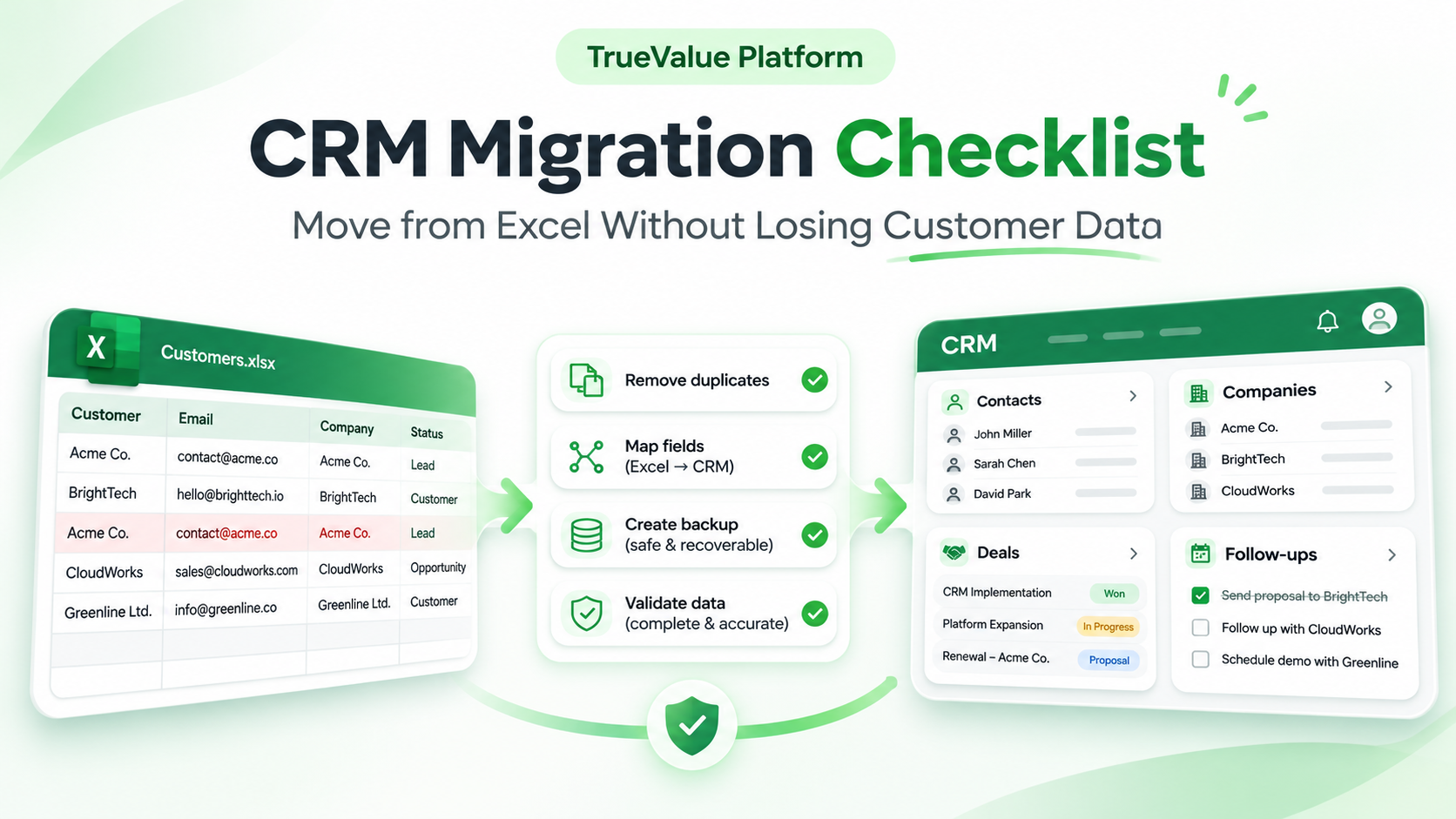
To move customer data from Excel into a CRM safely, back up your files, clean duplicates, map spreadsheet columns, test the import and verify the results before switching systems. Check more than contact counts: assigned owners, open deals, pending follow-ups and customer history must still make sense after the move.
The bigger risk is losing the context of who owns the customer, what happened previously and what comes next.
What customer data needs to move?
Inventory all workbooks and tabs. Define what each row means: a person, company, deal or activity. Three quotations do not mean three companies.
Information | Preserve | Common mistake |
|---|---|---|
Leads and contacts | Identity, contact details, source, status | Duplicate people |
Companies | Organisation details and linked contacts | Unconnected accounts |
Deals | Stage, value, owner, expected date | Missing active opportunities |
Follow-ups | Due date, next action, owner | Forgotten promises |
History | Notes, decisions, activity dates | Latest status without context |
Preferences | Marketing permissions and opt-outs | Treating old contacts as consent |
Confirm the CRM supports each record type and the required import method.
Step 1: Back up Excel and assign a migration owner
Save an untouched, dated copy of every workbook. Record the file's owner, last updated date, tabs and row counts. Make a second copy for cleaning; never edit the only original.
Assign one person to approve mappings and resolve conflicts. Restrict file access and agree on secure storage and retention for sensitive customer information.
Step 2: Create a data inventory and source IDs
List each source file, the kind of data it contains and who maintains it. Check which version is authoritative before combining sales-team records.
Keep a stable reference for every original row, such as EXCEL-000241. This legacy ID lets you trace a CRM record back to Excel. If unavailable as a CRM field, retain it in a protected mapping register. When migrating multiple files or worksheets, include a source-file or sheet reference in the legacy mapping so original rows can be distinguished reliably.
Separate contacts, companies, deals and activities logically. Identify relationships now: which contact belongs to which company, and which deal or follow-up belongs to which customer?
Step 3: Clean duplicates without losing customer history
Flag repeated emails, phone numbers and company identifiers. A matching name alone is not proof of duplication. Two people can share a telephone number; one customer can use multiple email addresses.
Classify potential matches as merge, keep separate or review. For verified duplicates, keep the most reliable current details while preserving useful notes, open deals and upcoming actions from the other rows. Record the original IDs and the reason for each merge.
Unique identifiers are central to avoiding repeat records and preserving associations. HubSpot's import-file guidance explains this approach for its own system; the precise matching rules differ across CRMs.
Step 4: Map spreadsheet columns to CRM fields
Standardise date formats, phone numbers, currency, country names, sales stages and owners. Treat phone numbers and identifiers as text where needed to preserve leading zeros and + signs. Do not guess missing country codes or erase disputed values.
Create a mapping table before uploading:
Excel column | Destination field | Rule to check |
|---|---|---|
Contact Name | Contact name | Preserve multi-part names |
Company | Account/company | Use a stable organisation reference |
Mobile | Phone | Preserve international prefix |
Lead Status | Lead status | Match approved stage values |
Sales Rep | Record owner | Match the correct user |
Next Call | Follow-up date | Check format and timezone |
Old Row ID | Legacy reference | Store or retain in mapping register |
These are illustrative fields, not a promise that every CRM supports them. Confirm mandatory fields, allowed values and custom-field availability with your provider.
If you save as CSV, check the correct tab was exported. Microsoft explains that Excel's text and CSV exports save the active worksheet and do not preserve workbook formatting. Keep the .xlsx source and check special characters after export.
Step 5: Preserve relationships and historical information
A contact import may appear successful while the company's deals remain disconnected. Decide how to associate contacts with organisations, opportunities with customers and follow-ups with owners. Use source IDs to verify those connections.
Some systems require an import order; others support associations in more than one file. Follow the destination CRM's documented process. Notes, attachments and call history may need a separate import method or a searchable archive. Do not silently discard them because they are not ordinary spreadsheet columns.
Step 6: Test with difficult records, not just easy ones
Start with a small, risk-based test import containing both typical records and difficult cases. Include duplicates, missing information, international phone numbers, special characters, linked companies, active deals and overdue follow-ups. Increase the test size when your dataset contains more record types or complex relationships.
Open the resulting CRM records. Check ownership, dates, field values and relationships against Excel. Log problems under source ID, issue, severity, owner and fix. Correct and retest the process before importing the whole dataset. Before retrying, check whether the failed attempt created records.
Step 7: Plan the full import and cutover
Agree on a time after which the old spreadsheets become read-only. Capture changes made since your backup; otherwise recent customer conversations may disappear from the final data.
Import in controlled batches if necessary. Record file versions, successful and rejected rows, and destination IDs. Review permissions and marketing preferences before activating communications. Keep a source snapshot and documented recovery procedure; not every CRM supports one-click rollback.Before repeating a failed import, determine whether the first attempt created or updated any destination records. Confirm whether the CRM supports safe updates, duplicate prevention and recovery from partial imports. Keep the original files until migration results have been reconciled and approved.
Step 8: Reconcile the migration at two levels
Level one: counts. Match each source row to an outcome: imported, merged, excluded or unresolved. Level two: context. Check that active deals, customer relationships, assigned owners and next actions are correct. Matching totals alone cannot prove a migration is safe.
Consider a fictional sales team with 240 Excel contact rows. After reviewing 19 confirmed duplicate rows, it expects 221 distinct contacts and has 46 active deals. The migration review should account for the 221 intended contacts and all 46 deals, including their links to customers and owners. In this example, the 19 duplicates represent redundant rows removed from the expected distinct-contact count. Any additional exclusions or unresolved records must be accounted for separately.
Reconciliation check | What should be verified |
|---|---|
Record totals | Expected unique contacts match outcomes |
Active deals | Correct customer, stage and owner |
Follow-ups | Correct next action, date and person |
History | Notes and agreed archived material accessible |
Exceptions | Rejected or disputed records have an owner |
Prioritise high-value customers and follow-ups due soon during a manual sample audit. Ask another team member to approve the results before go-live.
Step 9: Make the CRM the working source of truth
Show staff how to find assigned contacts, update deals, record a conversation and report incorrect information. Name one person to manage post-launch corrections. Explain when Excel stops being the live system.
Retain or dispose of old files under your organisation's privacy and retention policies. For Australian organisations to which the Australian Privacy Principles apply, the OAIC's APP 11 guidance covers reasonable security measures and disposal when personal information is no longer required. Check which obligations apply to your business.
Copy-ready CRM migration checklist
Source workbooks, tabs and owners inventoried; backups secured.
Included and excluded records approved.
Duplicate decisions and original IDs recorded.
Columns, required fields, owners and statuses mapped.
Contact, company, deal and activity links planned.
Dates, currencies and communication preferences checked.
Test import and manual field checks passed.
Failed rows, retries and rollback plan documented.
Old-sheet cut-off and migration owner agreed.
Record totals, relationships and follow-ups reconciled.
Users trained and correction contact assigned.
Legacy files handled under a retention policy.
Frequently asked questions
Can you import an Excel spreadsheet directly into a CRM?
Often, yes, using an Excel or CSV importer. Supported formats, required columns, duplicate detection and linked-record imports vary by system. Validate a small test file before moving live data.
How do you prevent duplicate contacts?
Use stable identifiers and review matches on emails, phone numbers and other verified information. Merge only confirmed duplicates, record the decision and understand whether a re-import creates or updates records.
Will notes, attachments and activity history move automatically?
Not necessarily. A contact import may exclude attachments, historical activities or linked records. Check available migration methods and make anything that cannot be moved accessible through an approved archive.
Should the business delete Excel immediately after the migration?
No. First complete reconciliation and sign-off. Then archive or securely dispose of old files according to the business's retention obligations, and make clear that the CRM is now the authoritative system.
A more dependable starting point for sales teams
A safe Excel-to-CRM migration is about preserving customer relationships, not just transferring rows. Protect the source, document decisions, test with messy data and verify what salespeople need for their next conversation.
TrueValue Platform CRM is a Product for managing leads, contacts, accounts, deals, follow-ups and reporting. Before migrating, confirm the available import methods and how your particular records will be handled. Request a Demo to discuss your sales workflow with the TrueValue team.
See Business Software and the rest of the Platform in action.
Start with the Product you need today, then add more on the same Platform.
Explore Products